 Freediver
How to Sync Your Suunto Device with freediver.club Workouts
Learn how to seamlessly sync your freediving workouts from freediver.club to your Suunto watch as SuuntoPlus™ Guides for convenient training sessions.
Sync Your Freediving Workouts to Suunto
freediver.club now supports syncing your freediving workouts directly to your Suunto device as SuuntoPlus™ Guides! This feature allows you to seamlessly transfer your planned sessions to your watch, making it easier than ever to follow your training plan during pool sessions.
Step-by-Step Guide
Follow these simple steps to connect your Suunto account and start syncing your workouts as SuuntoPlus™ Guides:
Step 1: Access the Connections Page
Navigate to your freediver.club user profile page and find the Connections section. This is where you'll manage all your device integrations, including Suunto.
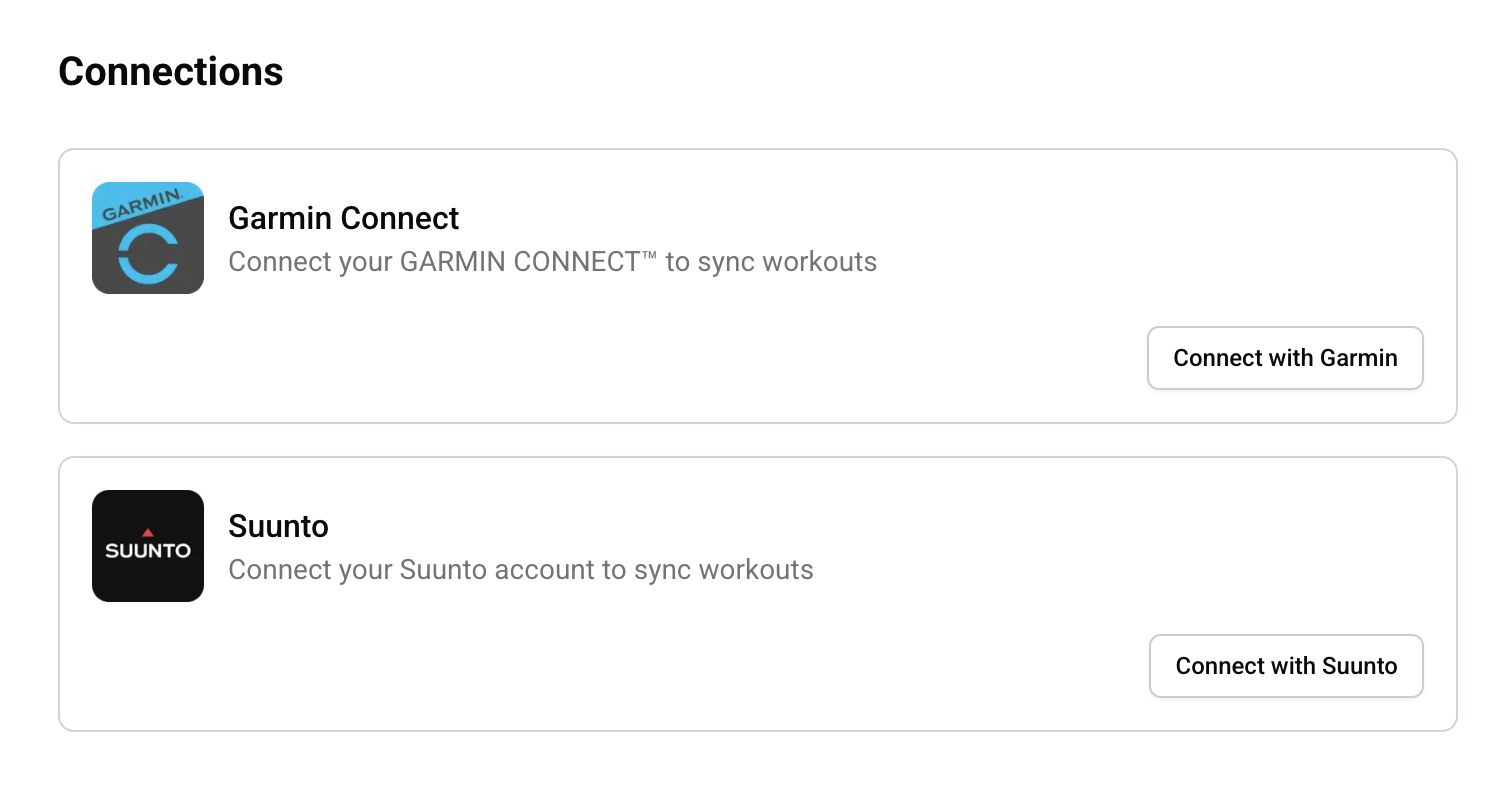
Connections page on your user profile
Step 2: Connect Your Suunto Account
Click on the Suunto connection option. You'll be redirected to Suunto's secure login page where you can authenticate with your Suunto account credentials. This ensures a secure connection between freediver.club and your Suunto account.
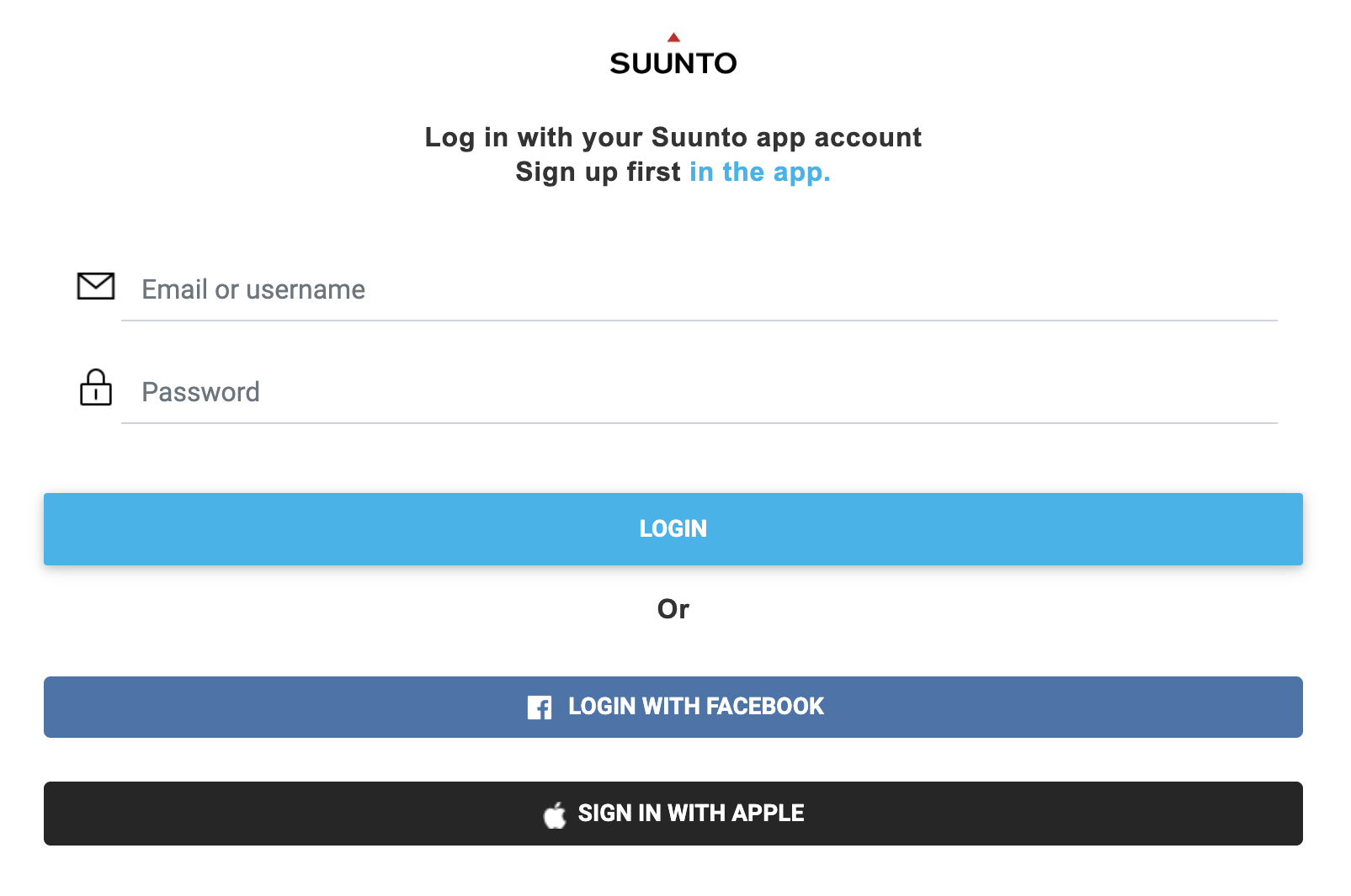
Suunto login page for authentication
Step 3: Select Your Workout
Once your Suunto account is connected, navigate to your freediver.club training schedule and select a workout that you want to sync to your watch as a SuuntoPlus™ Guide.
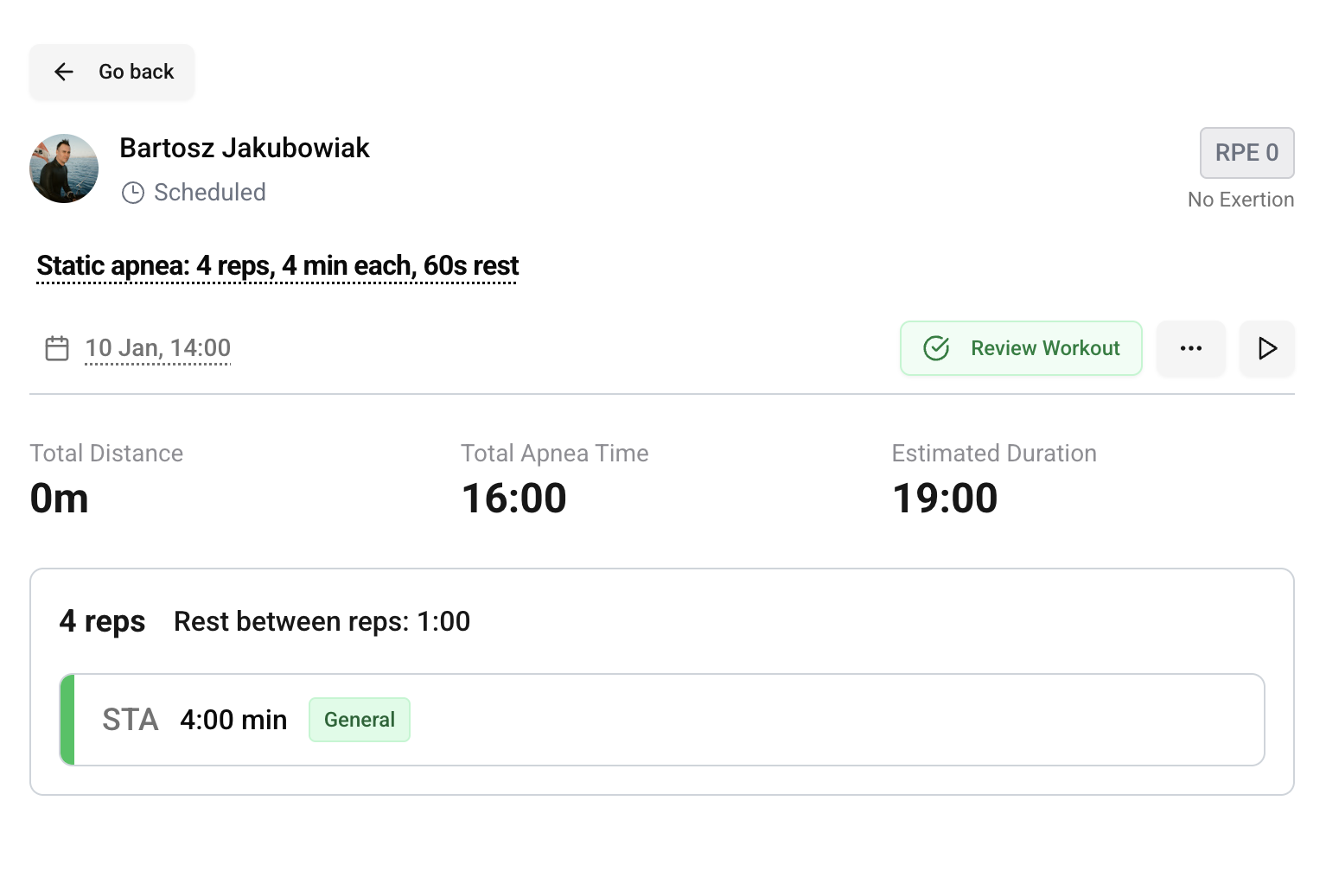
Workout ready to sync to your Suunto device
Step 4: Open the "Send to Watch" Menu
On the workout detail page, look for the dropdown menu that contains the "Send to Watch" option. This menu gives you access to various workout actions, including syncing to your connected Suunto device.
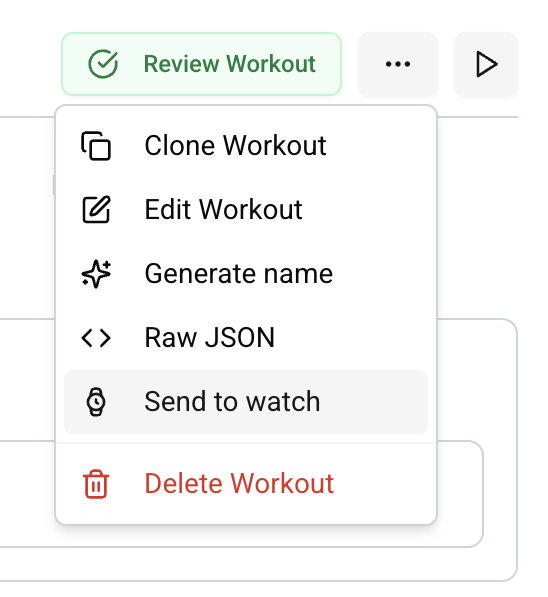
Dropdown menu showing send to watch option
Step 4.1: Customize Workout Division Settings (Optional)
Before sending your workout to your Suunto device, you can customize how your watch will notify you during the session. Visit your profile page to adjust these settings:
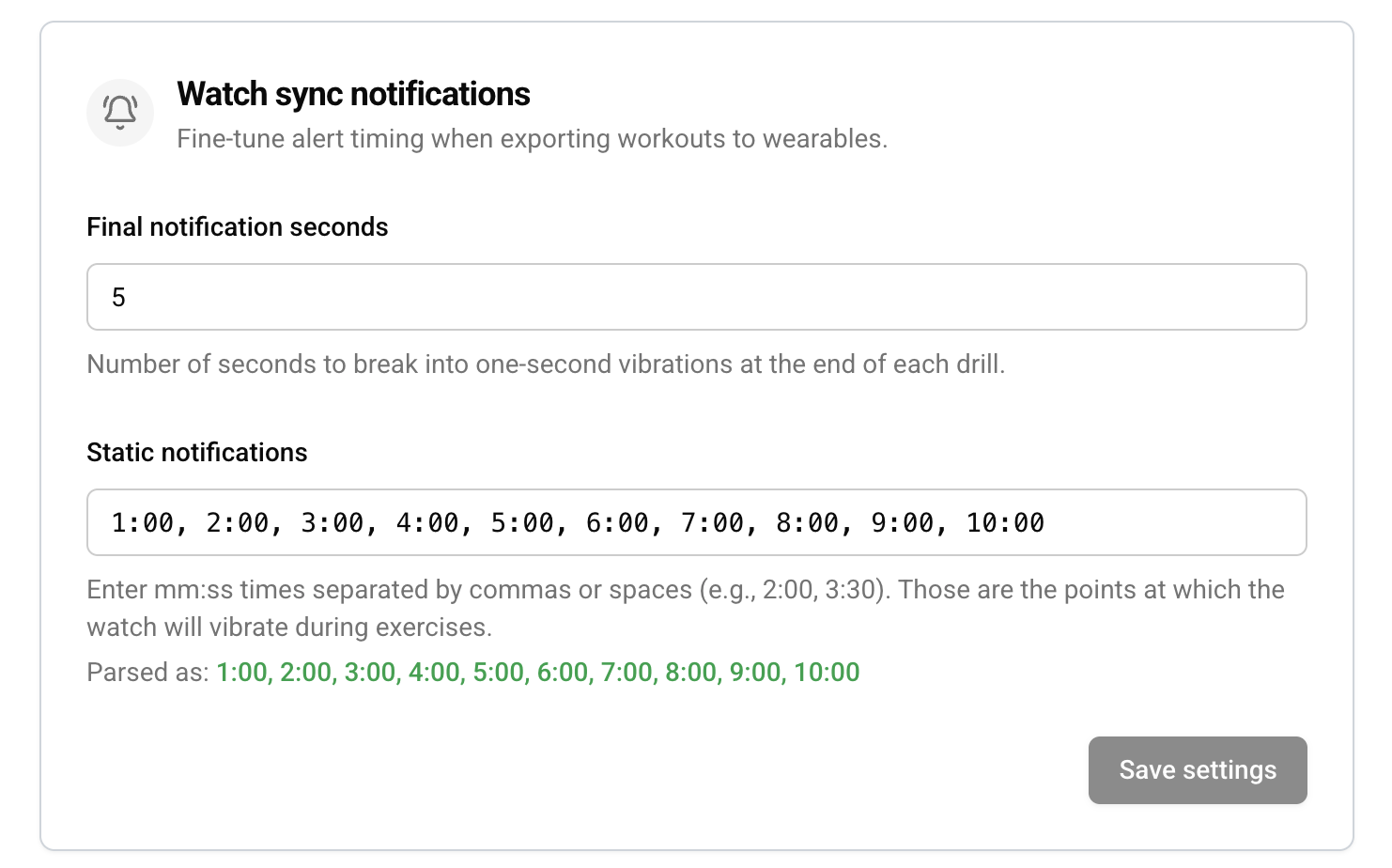
Workout division and vibration settings
- Vibration Alerts During Workout: Configure vibrations on your watch to notify you at different states of your workout. This helps you stay aware of where you are in your session without needing to look at your watch.
- End-of-Session Vibration: Enable a setting that will start vibration on your watch at the end of the session, so you know exactly when to get out of the water. This is especially useful for pool training when you need precise timing.
These settings allow you to personalize your training experience and ensure you receive the right notifications at the right times during your sessions.
Step 5: Preview and Send to Suunto
After selecting "Send to Watch", you'll see a preview of your workout with all the details that will be synced to your Suunto device as a SuuntoPlus™ Guide. Review the workout structure, intervals, and parameters. When you're ready, click the Suunto button at the top to initiate the sync.
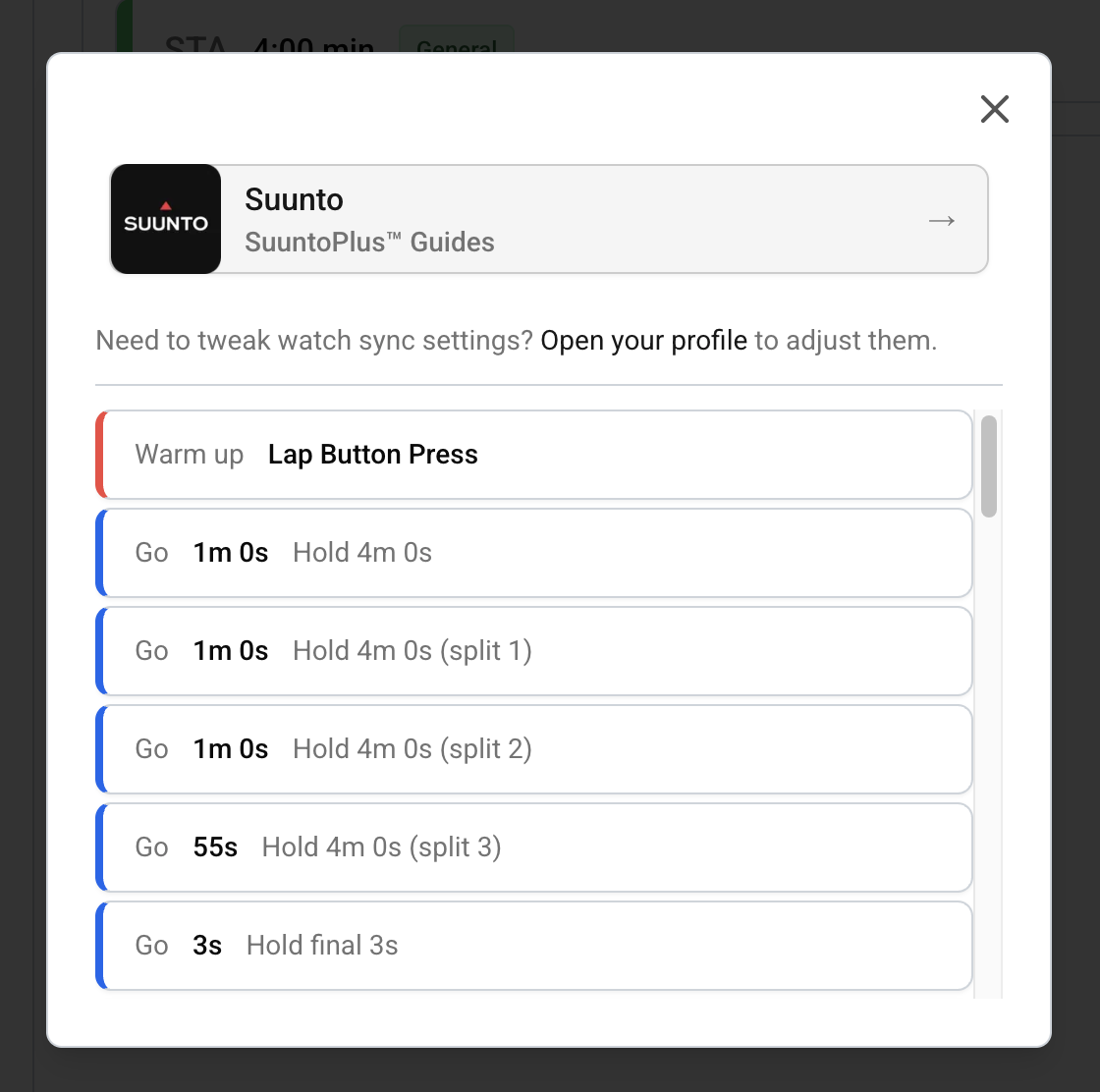
Workout preview with send to Suunto button
Step 6: Verify in Suunto App
Once the sync is complete, open your Suunto app to verify that your workout has been successfully transferred as a SuuntoPlus™ Guide. You should see your freediver.club workout SuuntoPlus™ Guide available, ready to be synced to your watch.
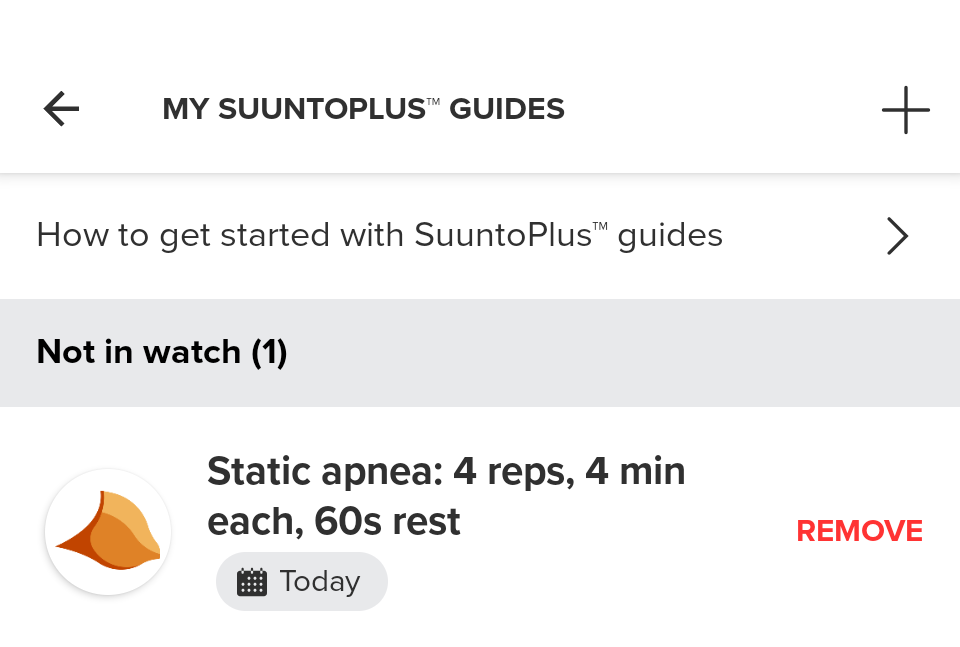
Workout SuuntoPlus™ Guide visible in Suunto app
Starting Your Workout on Your Suunto Watch
Once your workout has been synced to your Suunto device as a SuuntoPlus™ Guide, starting it on your Suunto watch is simple. Start a workout with SuuntoPlus™ Guide attached, then follow the on-screen instructions. Your watch will guide you through the session with all the intervals, rest periods, and parameters from your freediver.club plan.
Happy training,
Bartosz Jakubowiak
Founder, freediver.club
Bartosz Jakubowiak
10 January, 2026 • 3 min read(edited 9 March, 2026)